
reMarkable Paper Pro
4.2Editor score
Large color paper-like display
Marker Plus and folio included
Folders, tags, and PDF markup
A tablet for journaling should make ideas feel easier to capture, organize, and revisit. The best choices balance a natural writing surface with comfortable note-taking software, long battery life, distraction-free reading, and enough flexibility for meetings, classes, sketches, and daily reflections.
We compared all ten products using the information supplied for each model, focusing on writing feel, display quality, portability, organization tools, transcription features, document support, and everyday practicality. The list includes color and monochrome e-paper tablets, bright LCD models, and a pen tablet for users who do not need a standalone screen.
Each review explains where the product stands out, where its trade-offs may matter, and who it is best suited for. Ratings and specifications can change over time, and prices fluctuate, so readers should confirm the current listing and feature set before making a purchase.
4.2Editor score

5.0Editor score

4.3Editor score
As an Amazon Associate we earn from qualifying purchases.
This side-by-side comparison highlights each tablet's display, writing hardware, storage, and most useful journaling capabilities. It helps distinguish dedicated writing devices from general-purpose tablets that support notes, drawing, reading, and AI-assisted workflows.




The reMarkable Paper Pro combines a large 11.8-inch color e-paper display with the paper-like writing experience associated with reMarkable devices. Its 4.2 rating reflects a specialized tool that prioritizes calm note-taking, reading, and document work rather than the bright color and app flexibility of a conventional tablet.
We may earn a commission when you buy through this link, at no additional cost to you.
The package includes the Paper Pro, Marker Plus, six spare marker tips, a black leather Book Folio, and a USB-C cable. Users can write, sketch, and read in color, while the low-glare display remains suitable for use outdoors. An adjustable reading light extends comfort into the evening, and folders and tags keep notes and documents together.
Direct PDF annotation and handwriting conversion make this more than a traditional journal. At the same time, the 11.8-inch body is less pocketable than smaller e-paper alternatives, and a color e-paper display offers a different visual texture from a high-refresh LCD. Buyers who want maximum screen area for sketching and study should also verify that its size suits their bag and preferred grip.
The Paper Pro is best for users who want one premium device for handwriting, reading, PDF review, and color sketches. The included accessories create a complete first-use package, while the adjustable light and low-glare surface support journaling in varied environments. It is our premium pick for a large, focused writing tablet.
The 11.8-inch display gives handwriting, diagrams, and document annotations more room without turning the device into a general-purpose screen. That makes the Paper Pro especially useful for visual planners, lecture notes, and journal layouts that become cramped on smaller tablets.
Folders, tags, PDF markup, and handwriting conversion create a practical system for capturing and retrieving ideas. The adjustable reading light and natural-light-friendly display make the same device suitable for evening reading and daytime document review.
We may earn a commission when you buy through this link, at no additional cost to you.
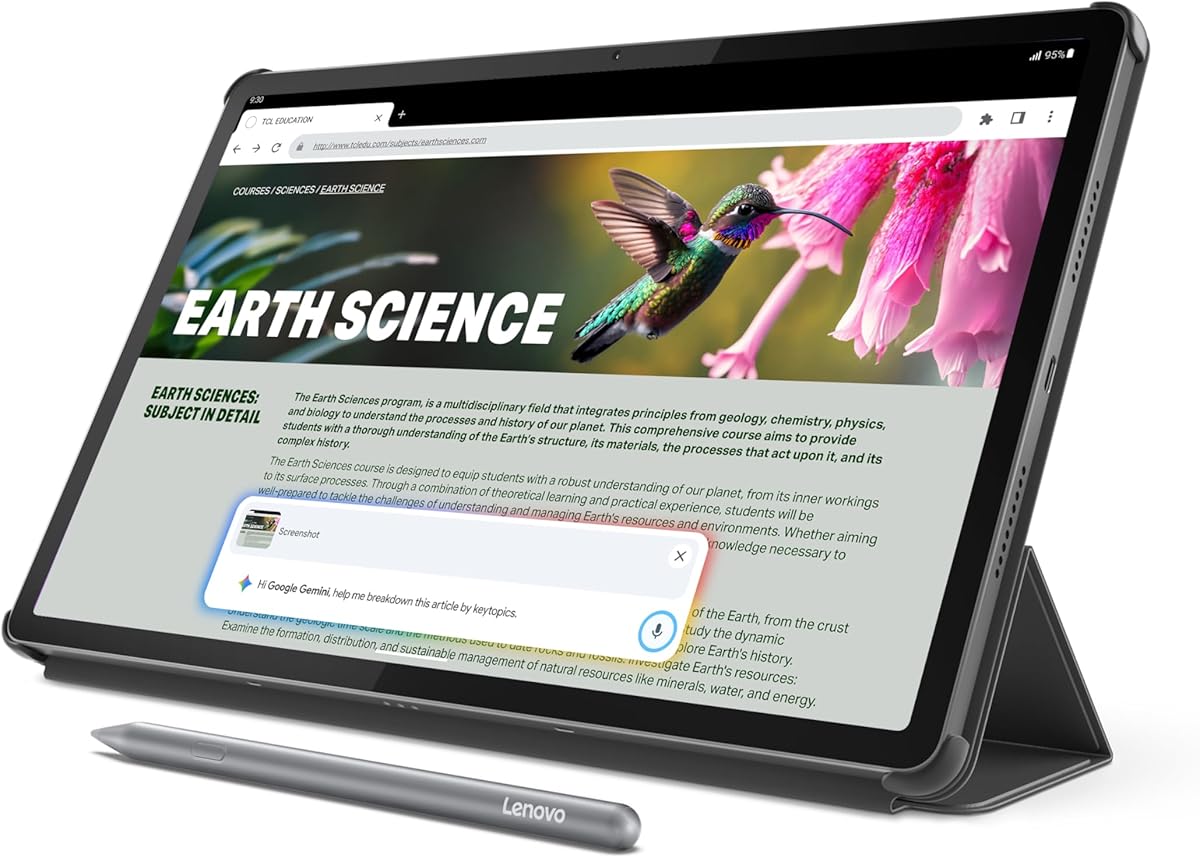
The Lenovo Idea Tab is a general-purpose tablet that offers a balanced starting point for handwritten journaling, study, and everyday entertainment. Its 4.3 rating comes with an 11-inch 2.5K IPS touchscreen, a 90Hz refresh rate, and a MediaTek Dimensity 6300 processor, all of which provide more conventional screen responsiveness than an e-paper device.
We may earn a commission when you buy through this link, at no additional cost to you.
The Lenovo Tab Pen and folio case are included, making it convenient to begin writing without separately sourcing basic accessories. Lenovo AI Note, Squid, Nebo, and MyScript Calculator cover note organization, handwriting, mind mapping, and calculations. Circle to Search also adds a practical research tool that can locate information or translate selected content.
Its four gigabytes of memory and 128GB of storage are adequate for note-taking and learning, but they place it below the Lenovo Idea Tab Plus in memory. The IPS panel also offers more vivid color and fluid touch interaction than e-paper, at the cost of a less paper-like appearance and a screen that can produce more reflections. Battery life is listed at up to 12 hours of YouTube use.
This is our budget pick for students, casual journalers, and anyone who wants one screen for handwriting, reading, media, and study. It offers a strong balance of display sharpness, included accessories, and application support. Users focused only on distraction-free writing may prefer a dedicated e-paper model, while those wanting more power should consider the Plus or Pro versions.
The included pen and folio make the Idea Tab ready for classes, commuting, and regular note-taking. Its four learning applications support different styles of writing, diagramming, organization, and calculation without requiring a separate specialized software bundle.
The 2.5K IPS panel and 90Hz refresh rate provide a more colorful and fluid experience than e-paper. Low blue light hardware is particularly welcome for long study sessions, although the device retains the notifications and multitasking potential of a standard Android tablet.
We may earn a commission when you buy through this link, at no additional cost to you.
The AINOTE Air is an 8.4-inch digital notebook built around lightweight note-taking, meeting capture, and handwriting recognition. It carries a 4.3 rating and weighs only 320 grams, making it one of the more portable dedicated options in this guide for commuters, travelers, students, and professionals.
We may earn a commission when you buy through this link, at no additional cost to you.
Its next-generation soft-color screen uses a low-blue-light source and anti-glare treatment, while the electromagnetic pen provides 4096 levels of pressure sensitivity. Handwritten notes can become editable text, with recognition supporting 66 languages. Real-time transcription and translation cover 48 languages, and local audio capture allows meetings to be recorded offline before connected features are used.
Some AI functions require cloud access, and the 8.4-inch canvas leaves less room for expansive sketching than larger models. The supplied information also references an included OfficeAI Pro period and a lifetime basic plan, so buyers should carefully review membership details, quotas, and future account requirements before committing.
The AINOTE Air suits people who want a compact writing device with unusually broad language and meeting support. It is especially relevant for international notes, recorded lectures, and handwritten idea capture. For users who do not need recording or AI transcription, a simpler dedicated notebook may offer a more focused experience.
Offline audio capture, real-time transcription, automatic summaries, extracted action items, and schedule functions turn the tablet into more than a handwritten pad. These tools can reduce the work involved in converting a conversation into organized notes.
At 320 grams, the AINOTE Air is easy to carry, while the pressure-sensitive electromagnetic pen supports varied line weights. Handwriting recognition across 66 languages and live translation across 48 languages make it useful for multilingual students and international teams.
We may earn a commission when you buy through this link, at no additional cost to you.
The iflytek AINOTE Air 2 is a dedicated E Ink notebook centered on fast handwriting, meeting transcription, and automated organization. Its listed 5.0 rating is the highest among these products, and the supplied specifications position it as a capable alternative for students and professionals who regularly convert spoken or written information into structured notes.
We may earn a commission when you buy through this link, at no additional cost to you.
The 8.2-inch display offers 23ms latency, multiple nib styles, and a 24-level dual-color reading light. Real-time voice-to-text works without a recurring subscription, while handwriting recognition reportedly supports 113 languages. The device also recognizes symbols such as stars and triangles to generate tasks or extract schedule information, and can produce weekly work reports.
The main compromise is the monochrome E Ink screen, which lacks the color and animated fluidity of the Lenovo and Samsung tablets. The broad AI feature set may also take time to configure, and OneDrive dependence for document downloading and viewing could matter to users of other cloud services. Users should assess which collaboration ecosystem matches their existing files.
We selected the AINOTE Air 2 as the editor's choice because it combines a paper-like display with extensive transcription, language, and organization capabilities without the stated burden of monthly productivity subscriptions. It is a strong recommendation for meeting-heavy professionals, language learners, and users who want their handwriting to become actionable, searchable information.
The strongest differentiator is real-time voice-to-text combined with AI meeting minutes and summaries. Because the supplied information describes these productivity features as permanently available without subscription fees, the tablet may appeal to users tired of recurring costs for note transcription.
Symbol-triggered to-do lists, schedule extraction, and report generation reduce the need to retype ideas after writing them. The feature is especially useful for people whose journals also function as action-oriented meeting and project notebooks.
We may earn a commission when you buy through this link, at no additional cost to you.
The Lenovo Idea Tab Plus combines a large 12.1-inch 2.5K IPS display with a light body and enough power for study, note-taking, entertainment, and creative work. Its 4.6 rating places it among the strongest products in the guide, especially for users who prefer a roomy, bright screen over monochrome or muted e-paper.
We may earn a commission when you buy through this link, at no additional cost to you.
Brightness of up to 800 nits improves visibility in strong ambient light, while the 90Hz display and MediaTek Dimensity 6400 processor support smooth interaction. The tablet includes the Lenovo Tab Pen and folio case. Lenovo Notepad, Squid, Nebo, and MyScript Calculator support writing, drawing, organization, and calculation, and Circle to Search adds quick research tools.
The IPS display is more colorful than an E Ink screen, but it does not recreate the reflective, low-glare appearance of dedicated paper tablets. Since this is a general Android device, the user experience can include notifications and the temptation to move away from journaling. Its eight gigabytes of memory is more generous than the base Idea Tab, although the larger body may still feel substantial during long reading sessions.
The Idea Tab Plus is a strong choice for students who want a large workspace for handwritten notes, annotated readings, and color sketches without sacrificing modern app support. It also suits professionals who want a single device for meeting notes, media, and lighter creative tasks. Those prioritizing a distraction-free paper experience should examine the dedicated e-paper options.
The 12.1-inch 2.5K panel offers enough room for split-screen research, digital notes, and reference documents. Up to 800 nits of brightness and low blue light certification support clear viewing in different settings.
The Dimensity 6400 processor and eight gigabytes of memory provide comfortable headroom for learning applications and multitasking. Drag-and-drop sharing with Smart Connect also makes transferring documents and photos to other devices more convenient.
We may earn a commission when you buy through this link, at no additional cost to you.
The Lenovo Idea Tab Pro is the most visibly performance-oriented model in this roundup, with a 12.7-inch 3K LCD, a MediaTek Dimensity 8300 processor, and a 4.6 rating. It is designed for students who want a sophisticated writing surface alongside smooth entertainment, advanced search tools, and substantial multitasking capability.
We may earn a commission when you buy through this link, at no additional cost to you.
The included Tab Pen Plus supports handwritten notes and Circle to Search, while Google Gemini is positioned as an AI assistant for assignments. Mono and chromatic reading modes can reduce visual fatigue, and the 360Hz touch sampling rate produces responsive input. Quad JBL Dolby Atmos speakers add value for lectures, videos, and music.
The device is not limited to journaling, and its game certification and high refresh rate may be irrelevant to some buyers. A 3K LCD offers a more vivid, animated interface than e-paper but does not provide the quiet, reflective appearance many writers prefer for long handwritten sessions. The larger screen may also require a folio or two-handed grip when annotating in portrait orientation.
The Idea Tab Pro is best for students, creative users, and professionals who want the most capable general-purpose tablet in the guide. It is particularly appropriate when a journal must also function as a media, research, and AI-assisted study device. Users seeking a dedicated paper tablet should instead consider a reMarkable or AINOTE model.
A 360Hz touch sampling rate and 90fps display make writing and navigation feel immediate. The high-resolution 3K panel also gives fine handwritten notes, diagrams, and annotated readings more clarity than lower-resolution alternatives.
Google Gemini, Circle to Search, reading modes, and the Tab Pen Plus support research and note-taking, while JBL Dolby Atmos speakers improve the experience for lectures and media. This makes the Pro suitable for users who want their journal to double as a complete study device.
We may earn a commission when you buy through this link, at no additional cost to you.
The Wacom Intuos Small is the most specialized option in the guide because it is a pen-input tablet rather than a standalone tablet with a display. Its 4.4 rating reflects Wacom's established EMR technology, which provides pen-on-paper feel and precise control without requiring a rechargeable or battery-powered stylus.
We may earn a commission when you buy through this link, at no additional cost to you.
It can be used with software for drawing, painting, photo and video editing, design, and document markup. Bluetooth offers cable-free operation, while a USB-A connection provides a wired alternative. The included software and online training make it easier for new users to explore the device, although the most important factor remains the quality of the pen experience.
There is no built-in screen, so notes appear on a connected computer rather than directly in front of the user. That means it cannot independently handle reading, web browsing, meetings, or offline journaling in the way the other products can. Its small footprint also makes it best suited to a desk or compact workspace rather than portable reading and sketching.
The Wacom Intuos Small is a strong choice for people who already own a laptop and want precise handwriting or drawing for digital journals, annotation, and creative work. It is less appropriate for someone seeking a self-contained tablet, but for compatible-computer users it can deliver a particularly controlled pen experience in a compact form.
Wacom's EMR system uses a battery-free pen, removing one common source of friction from a digital writing setup. The technology is designed to feel responsive and controlled, which can benefit handwritten journaling and detailed markups.
The Intuos works with many types of software, including note, design, image, and video applications. This makes it a flexible peripheral for a desktop-based journal, though it should not be compared directly with tablets that provide their own screen and storage.
We may earn a commission when you buy through this link, at no additional cost to you.
The reMarkable Paper Pro Move is the smaller and more portable counterpart to the full-size Paper Pro. Its 7.3-inch color display is designed to fit into a bag or jacket pocket, making it a compelling option for travelers, commuters, and people who want to capture ideas wherever they are.
We may earn a commission when you buy through this link, at no additional cost to you.
The package includes the device, Marker Plus, six spare tips, a black leather Book Folio, and a USB-C cable. The display is intended to look, feel, and sound like paper, while the device avoids typical laptop notifications. Handwriting can be converted to typed text, and notes synchronize to cloud-based mobile and desktop apps.
Search across handwritten notes requires a Connect subscription, according to the supplied product information. The 7.3-inch workspace is also considerably smaller than the Paper Pro, which may make extensive PDF markup or detailed illustration less comfortable. Some users may wish for a more powerful processor or the broader applications found on an Android tablet.
The Paper Pro Move is best for quick notes, reading on the move, and maintaining a focused digital journal away from a desk. Its included pen and protective folio support immediate use, while the compact color display preserves the strengths of the reMarkable writing experience. It is particularly compelling for writers who prioritize portability over maximum canvas size.
The small 7.3-inch body is easy to carry and smaller than many conventional tablets. A color paper-like display lets users write, sketch, and read without opening a full-size laptop, while the folio provides protection during transport.
The distraction-free design removes the usual wall of laptop notifications from face-to-face meetings and personal reflection. Conversion and cloud synchronization make captured ideas available elsewhere, although full handwritten search depends on Connect.
We may earn a commission when you buy through this link, at no additional cost to you.
The Samsung Galaxy Tab S10 FE+ is a large Android tablet with a 13.1-inch display, 256GB of storage, and a 4.7 rating. Its strongest appeal for journaling comes from the spacious screen and useful S Pen tools, particularly Handwriting Assist and Math Solver.
We may earn a commission when you buy through this link, at no additional cost to you.
Handwriting Assist straightens, aligns, and adjusts the spacing of written words to make notes look neater. Math Solver can convert equations written with the S Pen into text, and Circle to Search provides quick access to search results. Dual speakers support casual media use, while the large panel offers abundant room for reading, annotating, and planning.
Unlike dedicated e-paper devices, the Galaxy Tab S10 FE+ offers a bright, fluid Android experience with broad app support. That versatility can also introduce notifications and other distractions, while the large form factor is less convenient for pocketable note-taking. The supplied information also notes water resistance, which adds practical durability for everyday use.
The Galaxy Tab S10 FE+ is an excellent choice for users who want a generous Android workspace for handwritten notes, reading, and productivity. It stands out for users who value Samsung's note cleanup and math tools more than a strictly paper-like appearance. Buyers prioritizing minimalism or maximum portability should look at dedicated e-paper alternatives.
Handwriting Assist reduces the visual unevenness of notes by straightening lines, aligning words, and adjusting spacing. It is particularly helpful for people who write quickly but prefer a polished final page.
The 13.1-inch display and 256GB storage make this suitable for extensive readings, annotated documents, and media. Math Solver and Circle to Search add practical academic tools, although the expansive body is less convenient for one-handed use.
We may earn a commission when you buy through this link, at no additional cost to you.
The reMarkable Paper Pure is a focused 10.3-inch monochrome tablet for people who prefer uncluttered handwriting over a full-color Android experience. It carries a 3.9 rating and is built around fast digital ink, note templates, document review, and a deliberately minimal interface.
We may earn a commission when you buy through this link, at no additional cost to you.
The third-generation display is described as having improved whiteness and contrast, while digital ink appears in 21ms. Dozens of note templates support journaling, planning, and meeting work. Tags and folders organize content, handwriting can be converted to text, and users can send files from Google Drive, Dropbox, Microsoft Word, and other connected sources.
The lack of color is the most obvious limitation for users who want highlighted reference material, color sketches, or illustrated journals. Its 3.9 rating is also the lowest among the listed products, although ratings alone do not reveal the reason for individual experiences. The Paper Pure includes the Marker Plus, but the supplied package information does not mention a folio.
The Paper Pure is best for minimalist writers, readers, and students who want an e-paper experience without paying for a color display. Its fast response, strong contrast, document integration, and simple interface remain meaningful advantages. It is less suitable for creative color work but remains a focused choice for text-heavy journaling and annotation.
The improved black-and-white display emphasizes legibility without the color complexity of a conventional LCD. Fast 21ms ink response helps keep handwritten lines flowing naturally, supporting the focused character of the device.
Templates, folders, tags, and text conversion provide a straightforward structure for recurring journals. Integration with major document and cloud services also makes it practical for reading and annotating material before sending it onward.
We may earn a commission when you buy through this link, at no additional cost to you.
The right journaling tablet depends on how you capture ideas. Writing feel, screen type, note organization, portability, battery life, and document support matter more than raw processing power for many users, while AI and audio tools become important for meeting-heavy workflows.
E-paper displays are designed to resemble paper, reflect ambient light, and reduce glare. They usually provide a calmer writing environment and can feel more natural for long handwritten sessions, although they may show less color and refresh more slowly. LCD tablets offer brighter, more fluid screens, richer color, and smoother app interaction, but they do not recreate the reflective appearance of paper. The reMarkable Paper Pro and Paper Pro Move use color e-paper, the AINOTE Air 2 and Paper Pure use monochrome e-paper, and the Lenovo and Samsung models use conventional displays.
A journaling tablet should feel comfortable under a sustained writing session. Consider the included pen, pressure sensitivity, writing latency, nib options, and whether the surface produces a natural line. The reMarkable devices emphasize realistic friction and fast response, the AINOTE models use electromagnetic pens with detailed pressure levels, and the Lenovo tablets include active pens for smooth interaction with note and learning applications. The Wacom Intuos uses battery-free EMR technology but requires a separate computer rather than providing a built-in display.
Small screens are convenient for portable notes, while larger displays better accommodate journal spreads, sketches, PDF annotations, and handwritten study guides. The 11-inch Lenovo Idea Tab, 12.1-inch Idea Tab Plus, 12.7-inch Idea Tab Pro, and 13.1-inch Galaxy Tab S10 FE+ offer generous LCD workspaces. The 11.8-inch Paper Pro is the largest dedicated e-paper option here, while the 7.3-inch Paper Pro Move prioritizes portability. Consider both the physical size of the device and the usable area available in portrait orientation.
A journal becomes more useful when entries are easy to find. Folders, tags, templates, handwriting conversion, search, and cloud synchronization are among the most relevant features in this category. The reMarkable products use folders and tags and can convert handwriting into text. The AINOTE Air 2 adds symbol-triggered tasks and scheduling, while the Lenovo devices include applications such as Lenovo AI Note, Lenovo Notepad, Squid, and Nebo. Samsung adds Handwriting Assist for visual cleanup. A robust organization system is often more valuable than a small increase in processing power.
AI features can convert handwriting, transcribe meetings, summarize discussions, extract action items, and locate information. They are most relevant for professionals, students, and multilingual users. The AINOTE Air supports transcription and translation across 48 languages, while the AINOTE Air 2 supports 18-language transcription, 14-language mutual translation, and 113-language handwriting recognition. Lenovo adds Gemini and Circle to Search, and Samsung includes Circle to Search alongside Handwriting Assist. Check which functions work offline, which require an account, and whether any memberships are involved.
A journal is easiest to maintain when it is comfortable to carry every day. The AINOTE Air weighs 320 grams, the reMarkable Paper Pro Move is designed to fit in a pocket or small bag, and the Lenovo Idea Tab Plus is described as weighing just over a pound. Battery claims vary by model: the AINOTE Air lists up to 25 days, the AINOTE Air 2 describes approximately a week of heavy use, and Lenovo models list up to 11 to 13 hours of video playback. The most meaningful endurance for a writer will depend on screen type, note volume, lighting, and wireless use.
Journaling often involves more than blank pages. PDF annotation, cloud imports, web article transfer, document conversion, and comfortable long-form reading all matter. The reMarkable products support direct PDF work and integrations with services such as Google Drive, Dropbox, and Microsoft Word. The AINOTE Air supports PDF, DOC, EPUB, MOBI, and TXT files, while the AINOTE Air 2 includes OneDrive integration. Larger LCD models offer vivid document rendering and more familiar app-based reading, but they may be less pleasant in bright surroundings.
Dedicated e-paper devices are intentionally limited and can help users avoid notifications and unnecessary apps. General-purpose tablets provide wider app support, entertainment, web access, and stronger multimedia performance, but they may be less focused. The Wacom Intuos occupies a third category as a screenless peripheral for a computer. Decide whether the journal should be a calm standalone environment or the center of a broader digital workflow. This choice will often matter more than small differences in processor speed.
Begin by choosing a journal structure that matches how you think. Create a small number of clearly named folders or notebooks, decide whether dates, projects, or subjects will be your primary categories, and establish a simple weekly review routine. Consistent titles and tags make later search more effective, especially on devices that convert handwriting into editable text.
Pair the tablet with the workflow that suits it. Use e-paper models for quiet reading and concentrated handwriting, LCD tablets when color diagrams, web research, and multimedia are important, and the Wacom Intuos alongside compatible computer software. For meeting tablets, test transcription and summary settings before important sessions, and confirm that essential AI functions work under the connectivity conditions you expect.
Protect the writing surface and pen tips by keeping the device in its folio or another suitable case. Avoid prolonged pressure against the display, clean the surface with a soft microfiber cloth, and follow the manufacturer's guidance for compatible cleaning products. Store the tablet in a dry environment, charge it periodically, and back up important journals to the cloud or another storage service so a hardware failure does not erase personal notes.
E-paper is usually better for users who want a calm, paper-like writing experience, minimal glare, and long reading sessions. LCD is usually better for color, fluid touch response, web browsing, entertainment, and broad app support. The best choice depends on whether writing comfort or versatility is your main priority.
A stylus is strongly preferable for handwriting, annotation, sketching, and handwritten organization. Some products include one, while others may support finger input only. If handwriting is central to your routine, verify that the exact package includes a compatible pen and check its pressure and latency specifications.
A smaller screen is easier to carry and works well for brief daily notes, while a larger screen is more comfortable for journal spreads, diagrams, and PDF markup. Consider how you will hold the device: around 8 inches favors portability, while larger 11- to 13-inch models suit desk-based writing and reading.
They can replace a paper journal for many users by providing handwriting, reusable pages, search, backups, and document integration. A paper-like e-paper model may feel most natural, while an LCD tablet may offer more tools. Some writers still prefer paper for privacy, simplicity, or the absence of electronic distractions.
AI recognition can be useful, but accuracy depends on handwriting, language, audio quality, and the specific software. Test it with your own writing style before relying on it for critical records. Always keep original notes or a separate backup when meeting transcriptions are important.
Basic handwriting and local note-taking can generally be used without a connection, especially on dedicated e-paper devices. Cloud synchronization, some AI summaries, language translation, and certain search features may require connectivity or an account. Review offline storage and account requirements before purchasing.
A screenless tablet can work well for people who already use a laptop and want accurate pen input for digital handwriting or annotation. It is not a standalone journal because notes appear on the connected computer. Travelers and users who want independent reading, storage, and note capture should consider a tablet with a built-in display.
Use a consistent folder system, such as yearly, monthly, or project-based notebooks, and add tags for topics or contexts. Date each entry and reserve a recurring weekly note for reviews, unfinished ideas, and planning. Periodic cleanup keeps search results useful and prevents the journal from becoming a disorganized archive.
The reMarkable Paper Pro is the leading premium choice for a large, focused color writing experience, while the iflytek AINOTE Air 2 is the editor's choice for meeting transcription and intelligent organization. The Lenovo Idea Tab stands out as the best budget-oriented all-rounder, offering a sharp display, included pen and folio, and useful learning applications.
Your priorities should guide the final choice. Choose e-paper for a paper-like surface and fewer distractions, an LCD for color and application flexibility, a compact device for portability, or a larger model for detailed work. Consider battery life, note organization, document formats, stylus quality, and any AI subscription terms before deciding.
Ratings, software, and product details can evolve, and prices change over time. Check the current listing, included accessories, storage options, and account requirements before purchasing so the tablet you select remains well suited to your journaling habits.