
HUION Drawing Tablet H420X
4.4Editor score
8,192 pressure levels
Compact 4.17-inch area
Driver-free setup
A tablet for CAD design should translate precise hand movements into clean lines, controlled curves, and editable geometry. The right choice depends on whether you prefer a compact pen tablet, a display that draws directly onscreen, or a standalone tablet capable of running creative applications without a nearby computer.
We compared the ten products using their stated pressure levels, screen construction, pen features, portability, connectivity, software compatibility, and intended creative workflow. The list covers screenless drawing tablets, pen displays, and standalone slates, including options for technical drafting, illustration, animation, and design work.
Each review highlights the strongest benefit, practical limitations, and the kind of user most likely to benefit. Ratings and specifications reflect the supplied product information, while features and software support can vary by operating system and application. Prices and availability change frequently, so verify current listings before purchasing.
4.4Editor score

4.5Editor score

4.3Editor score
As an Amazon Associate we earn from qualifying purchases.
The comparison below highlights differences in tablet format, pen precision, screen size, portability, connectivity, and workflow suitability across all ten products.




The HUION Kamvas 13 (Gen 3) combines a large pen display with advanced pressure detection, calibrated color, and multiple physical controls. Its 4.5 rating reflects a strong balance of drawing quality and productivity features, making it one of the most versatile choices in this guide for CAD, illustration, animation, and related digital work.
We may earn a commission when you buy through this link, at no additional cost to you.
The 13-inch full-laminated Canvas Glass 2.0 surface is designed to reduce parallax and glare while providing a paper-textured feel. PenTech 4.0 pen technology delivers 16,384 pressure levels, a 2g initial activation force, thin nibs, and tilt auto-alignment. Two dial controllers and five silent press keys can be assigned to frequently used canvas and editing functions.
Color work is another important strength. The display covers 99% of sRGB and Rec.709, 90% of Adobe RGB, and is factory calibrated to a stated Delta E below 1.5. The main trade-off is that it cannot operate independently: users need a Windows, Mac, Linux, or compatible Android device with the appropriate connection and software support.
This is our top overall recommendation because it offers direct-screen control without sacrificing pressure sensitivity, color accuracy, or professional shortcut access. It is particularly suitable for CAD users who work across multiple programs, need stable line quality, and prefer sketching directly over the drawing area rather than looking between a separate tablet and monitor.
The full-laminated glass and tilt auto-alignment help keep the pen tip visually aligned with the cursor. That makes the Kamvas 13 (Gen 3) especially useful for detailed line work, construction sketches, technical illustrations, and other tasks where visual alignment matters.
Two dials and five silent press keys give quick access to zoom, brush, flow, opacity, frames, and other parameters. Although the exact command assignments depend on the software, these controls can reduce repeated mouse movement and keep attention on the drawing.
We may earn a commission when you buy through this link, at no additional cost to you.
The Wacom Intuos Medium is a screenless drawing tablet built around precise, battery-free EMR pen technology. It carries a 4.5 rating and offers an established combination of natural pen feel, wireless operation, and broad application support, making it a dependable choice for conventional CAD drafting and digital design.
We may earn a commission when you buy through this link, at no additional cost to you.
Its main advantage is the uncomplicated pen experience. The pen does not need charging, and the tablet can connect by Bluetooth or through the included USB-A cable. Users can move between a desk, sofa, classroom, or other location without being restricted to one fixed workstation, although a computer remains necessary for CAD applications.
As a screenless model, the Intuos Medium does not provide a built-in display. The artist must look at a separate monitor while drawing, which some users find less immersive but others appreciate because the entire monitor remains dedicated to the CAD canvas. Wacom also advertises compatibility with many creative programs and includes software and online training following registration.
The Wacom Intuos Medium is best for users who already have a good display and value pen feel, reliability, and flexible connectivity. It is a sensible choice for architectural drafting, product concept work, floor plans, annotations, and general digital design where a physical screen is not essential.
Bluetooth allows the tablet to function without a cable, while USB-A provides a dependable wired alternative. This dual setup is useful at shared workstations, in client meetings, or in studios where cable routing is inconvenient.
Because the tablet works as an input device rather than a closed creative platform, it can fit into many established CAD and illustration workflows. Users should still confirm their chosen application's pen and Bluetooth support before buying.
We may earn a commission when you buy through this link, at no additional cost to you.
The PicassoTab X14 is a 14-inch standalone drawing tablet for people who want a large digital canvas without carrying a computer. Its 4.2 rating reflects a practical combination of a roomy laminated display, 4,096-level pressure sensitivity, bundled applications, and an octa-core platform with 6GB of memory.
We may earn a commission when you buy through this link, at no additional cost to you.
Drawing takes place directly on the 14-inch screen, so the artist does not have to divide attention between a separate display and input area. The fully laminated surface is intended to reduce parallax and glare, while the included pressure-sensitive pen supports varied line widths. Preloaded drawing, painting, animation, tutorial, and guide applications make the device usable without immediate setup.
The computer-independent design is the defining advantage and the main limitation. It is excellent for sketching away from a workstation, but complex professional CAD suites may still offer more complete geometry, layer, and file-management tools on a desktop platform. The 4,096 pressure levels also trail the higher-resolution pens found in professional pen displays.
The X14 is most appropriate for users who prioritize portability, screen size, and freedom from a connected computer. It can serve as a travel drafting board, concept sketch device, or portable review surface, particularly for users who are comfortable with its bundled creative ecosystem.
The 14-inch display provides substantially more room for sketches and plans than a compact tablet. Its light, travel-oriented construction makes it easier to use away from a permanent desk, while the bundled case adds protection during transport.
Preinstalled drawing applications remove the need for a separate computer for immediate sketching. Storage can also be expanded up to 1TB, which helps users keep reference images, project files, and tutorials together on the device.
We may earn a commission when you buy through this link, at no additional cost to you.
The HUION Kamvas 13 (Gen 3) is a professional pen display whose 4.5 rating reflects a strong combination of precision, color quality, and workflow controls. Its 16,384 pressure levels and PenTech 4.0 pen make it well suited to detailed CAD linework, technical illustration, and digital painting.
We may earn a commission when you buy through this link, at no additional cost to you.
The full-laminated 13-inch surface combines an anti-glare paper texture with improved clarity. The pen supports a thin nib, tilt response, and auto-alignment, while three side buttons and a dust-proof grip add practical control. Two dials and five silent press keys can be mapped to commonly used software functions.
Its color specifications are particularly useful when CAD output involves visualization, material studies, or presentation graphics. The stated 99% sRGB and Rec.709 coverage, 90% Adobe RGB coverage, and factory calibration to Delta E below 1.5 support consistent color presentation. The screen remains a display rather than a complete computer, so a host device and compatible application are required.
This display is ideal for designers who want high pen resolution and direct onscreen work without a bulky pen-display chassis. Its thin 11.7mm profile and 865g weight also make it more portable than many fixed desktop alternatives, while the symmetrical body supports both left- and right-handed users.
Factory calibration and broad color coverage help artwork retain its intended appearance on the tablet display. This is valuable for users who combine technical CAD drawings with rendered concepts, texture studies, or color-coded documentation.
The 16,384-level pen and 2g activation force provide fine control over stroke weight. Tilt recognition and the thin nib further support detailed drafting, shading, and illustration tasks where consistent pressure response is important.
We may earn a commission when you buy through this link, at no additional cost to you.
The RubensTab T11 Pro is a compact standalone drawing tablet built for sketching, notes, presentations, and light design work away from a desk. Its 4.4 rating is supported by a sharp 10.1-inch Full HD IPS display, a pressure-sensitive pen, built-in applications, and a 5,800mAh battery.
We may earn a commission when you buy through this link, at no additional cost to you.
The tablet operates independently, so a CAD-related user can open drawings, review concepts, or make annotations without connecting a separate machine. A 1,920 by 1,200 display offers fine detail, while the wireless pen provides adjustable pressure and multi-touch supports zooming, panning, and scrolling. USB-C charging and power-bank support add convenience while traveling.
The adjustable stand case supports both desktop use and transport, and the device is also positioned for meetings, classroom work, and brainstorming. Its constraints are the smaller drawing area compared with 13- and 14-inch models and a stated continuous-use battery figure of up to five hours, which may be insufficient for an entire workday away from power.
The T11 Pro is best for mobile concept work, visual note-taking, client discussions, and users who want a compact all-in-one creative device. It is less compelling as the primary precision surface for a full professional CAD suite, but it provides a useful portable companion for reviewing and marking up technical work.
The independent operating system and built-in applications let users sketch, organize notes, and review files without a separate computer. Wi-Fi connectivity provides access to online resources, tutorials, and cloud storage for collaboration.
The battery-free pressure-sensitive pen avoids routine charging, while its adjustable sensitivity supports different drawing styles. Multi-touch is convenient for moving around a canvas, zooming into details, and performing gestures that are difficult with a pen alone.
We may earn a commission when you buy through this link, at no additional cost to you.
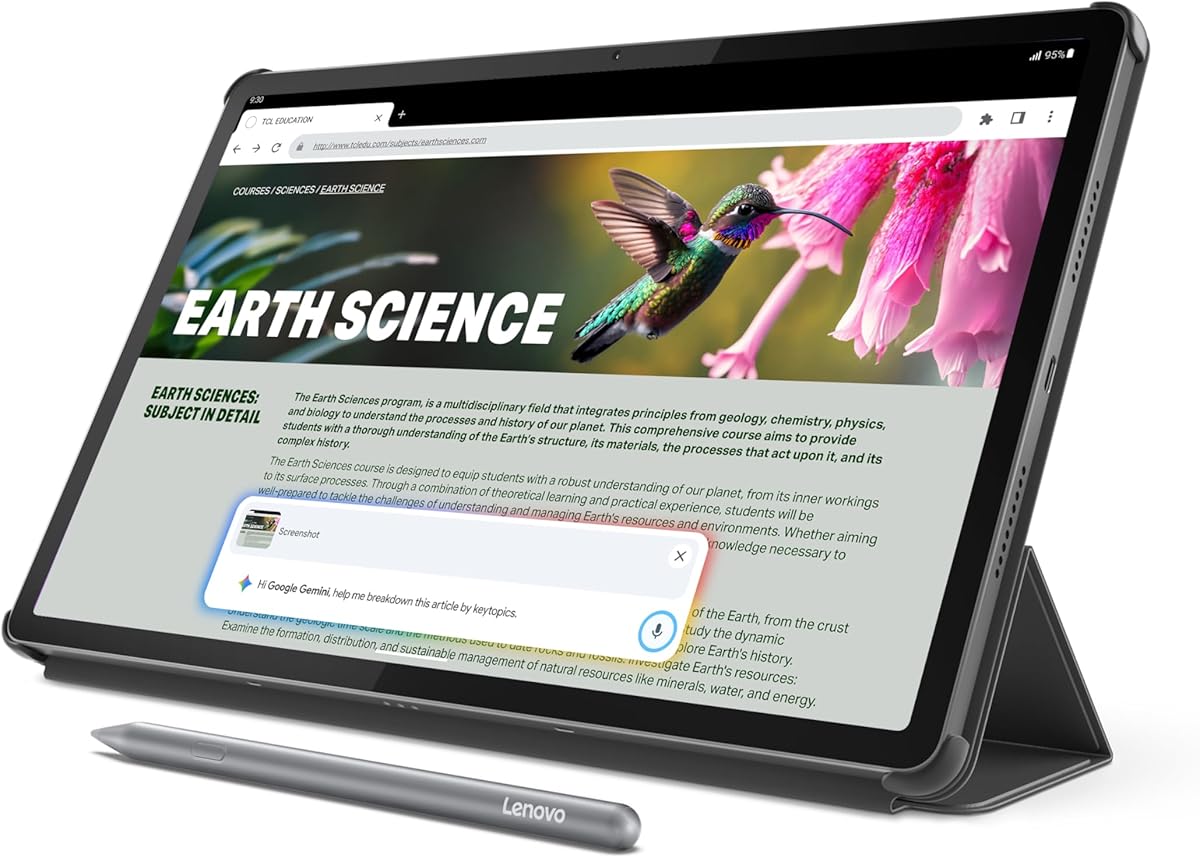
The Lenovo Idea Tab Pro is a general-purpose 12.7-inch tablet that includes a pen and folio, making it an appealing option for CAD learners and users who also need media, study, and note-taking functions. Its 4.6 rating is the highest among the Lenovo models in this list.
We may earn a commission when you buy through this link, at no additional cost to you.
A 3K LCD provides sharp detail for plans, diagrams, reference images, and annotated documents. The included Tab Pen Plus supports Circle to Search, while the MediaTek Dimensity 8300, 8GB memory, and 128GB storage provide a capable platform for multitasking. Wi-Fi 6E and 45W charging are useful for study and mobile productivity.
The tablet is not purpose-built as a pen display, and its value depends heavily on the drawing or CAD applications available for Android. Specialized pressure behavior, shortcut mapping, and desktop-class CAD geometry tools may not match a dedicated graphics tablet. Its 90fps gaming specification also says little about the practical demands of intensive drafting.
For students, hybrid workers, and users who want one device for multiple purposes, the Idea Tab Pro offers a compelling balance. It is especially attractive when a full 3K canvas, included pen, and folio matter more than workstation-grade pressure response or specialized CAD controls.
The 3K panel gives technical drawings, reference photographs, and notes more visible detail than many conventional tablets. Its wide screen also provides ample room for side-by-side reference material while sketching.
Google Gemini, Circle to Search, note features, and Android applications extend the device beyond drawing. This makes it a practical central device for students who need research, annotation, media consumption, and occasional creative work in one place.
We may earn a commission when you buy through this link, at no additional cost to you.
The HUION H420X is a compact, screenless graphics tablet aimed at users who need reliable pen input without spending on a large display. Its 4.4 rating and 8,192 pressure levels make it a capable drafting accessory for small workspaces, travel, and learning applications.
We may earn a commission when you buy through this link, at no additional cost to you.
The tablet measures only 7mm thick and weighs 167g, with a 4.17 by 2.6-inch active area inside a 6.77 by 4.3-inch body. Its battery-free stylus supports 8,192 pressure levels and two customizable side buttons, while a stated 300 PPS report rate is intended to produce quick, smooth lines.
Setup is refreshingly direct: the product uses plug-and-play operation without driver installation. It supports Windows, Mac, and Android, and is listed as compatible with major graphics applications including Adobe Photoshop, Corel Painter, Illustrator, Sketchbook, Clip Studio Paint, ZBrush, and others. It is not compatible with iOS, which is an important limitation for iPad users.
The H420X is a strong choice for students, sketchers, and CAD learners who want to begin using a pen without a large footprint. The limited active area makes complex floor plans or detailed illustrations less comfortable, but its portability, quick response, and broad application support create a convincing entry point.
The compact body can fit beside a laptop or keyboard without dominating the desk. Its light weight and battery-free pen also make it convenient to pack for classes, client visits, or working in shared spaces.
Plug-and-play operation reduces setup friction, while support for Windows, Mac, and Android expands compatibility. Application support is broad, but users should verify the precise features and operating system requirements of their preferred CAD program.
We may earn a commission when you buy through this link, at no additional cost to you.
The Lenovo Idea Tab Pro Gen 2 is a premium Android tablet aimed at students and professionals who want sharp visuals, efficient note capture, and mobile productivity. Its 4.3 rating reflects a capable 13-inch 3.5K display, modern Snapdragon platform, and thoughtful study-oriented features.
We may earn a commission when you buy through this link, at no additional cost to you.
The LTPS panel provides 3.5K resolution and 800 nits of brightness, with TÜV Rheinland Low Blue Light and Flicker Free certifications. A 144Hz touchscreen makes navigation feel responsive, while the Snapdragon 8s Gen 4 platform and built-in NPU support multitasking and AI-assisted note tools. The included pen and folio make the package ready for daily use.
Smart Capture, Lenovo Notepad, AI Notes, Sketch to Image, and live transcription can help transform rough visual ideas and messy notes into organized material. These features are more relevant to concept development and documentation than to precision geometry, and users should verify the availability of their preferred CAD or drawing applications on Android.
The Gen 2 model is best for visually intensive study, annotated documents, presentations, and mobile design review. It is less compelling for a specialist CAD artist who prioritizes pressure levels, calibrated displays, and shortcut-heavy pen controls over general computing performance.
The combination of 3.5K resolution and 800 nits supports clear reading of fine drawings, plans, and documents in varied lighting. Low Blue Light and Flicker Free certifications also make long study sessions more comfortable.
Smart Capture can pull visuals into Lenovo Notepad, where AI tools can summarize, rewrite, and organize content. Sketch to Image offers a route for expanding simple hand-drawn ideas, making the tablet useful during early design discussions.
We may earn a commission when you buy through this link, at no additional cost to you.
The Samsung Galaxy Tab S10+ is a high-end Android tablet with a 4.7 rating, a vivid 12.4-inch Dynamic AMOLED 2X screen, and an included S Pen. It is the strongest premium general-purpose option in the list for mobile design, illustration, technical review, and AI-assisted creative work.
We may earn a commission when you buy through this link, at no additional cost to you.
The large display provides rich contrast and reduced glare, while the S Pen supports natural handwriting and drawing. Galaxy AI features include Sketch to Image, which can turn simple sketches into developed artwork, and Note Assist for organizing and summarizing recorded lectures or meetings. Circle to Search adds a quick way to retrieve information from what is on screen.
The device also supports broader entertainment and productivity needs through a powerful tablet processor, 256GB of storage, and its large screen. Its limitations concern specialization rather than quality: Android app availability varies, and a general-purpose tablet does not provide the physical shortcut controls, wired pen-display workflow, or dedicated pressure specifications emphasized by graphics-tablet manufacturers.
The Galaxy Tab S10+ is a strong choice for a designer who wants one premium device for drawing, review, presentation, research, and note-taking. It is especially attractive for users who value screen quality, Samsung's S Pen integration, and mobile AI features as much as precise CAD drafting.
The 12.4-inch Dynamic AMOLED 2X screen offers strong color, contrast, and clarity for reviewing finished plans or presenting design concepts. Reduced glare also helps when the tablet is used in brighter environments.
Sketch to Image can expand rough concepts, while Note Assist organizes recorded content and creates summaries. These features support ideation and documentation, although CAD users should treat them as supplements rather than substitutes for precision drafting tools.
We may earn a commission when you buy through this link, at no additional cost to you.
The Samsung Galaxy Tab S10 FE+ combines a large 13.1-inch display, an included S Pen, and a 4.7 rating in an Android tablet designed for entertainment, productivity, and creative work. It is especially attractive for users who want a generous canvas for sketches, diagrams, and annotated documents.
We may earn a commission when you buy through this link, at no additional cost to you.
S Pen support provides a responsive, paper-like writing experience, while Handwriting Assist can straighten, align, and space handwritten notes. Math Solver can convert written equations into text, and Circle to Search makes onscreen research convenient. The big display is also useful for side-by-side references, presentation editing, and reviewing visual work.
The device supports fast-paced gaming, casual multitasking, and media use, with a 13.1-inch screen and dual speakers. Storage starts at 128GB and can be expanded with a microSD card. Water resistance adds reassurance for frequent mobile use, but this remains an Android tablet, so specialized CAD application support is the central limitation.
The Tab S10 FE+ is a compelling choice for students, field workers, and design reviewers who value a large screen, reliable S Pen integration, and a durable portable format. It works well for visual planning and markups, while specialists who depend on desktop CAD geometry should confirm application support before committing.
The 13.1-inch display provides ample room for freehand diagrams, markup, and project references. The S Pen makes it convenient to move from handwriting to technical notes without changing input devices.
Handwriting Assist improves the appearance of messy notes, while Math Solver handles written equations. Circle to Search supports quick research, making the tablet more useful for the documentation stages that surround CAD work.
We may earn a commission when you buy through this link, at no additional cost to you.
The right CAD tablet depends on your software, screen habits, precision requirements, and need for portability. Use the following factors to narrow the field before choosing a screenless tablet, pen display, or standalone Android device.
A screenless drawing tablet separates the drawing surface from the display, offering a familiar desk setup and often excellent pen tracking. A pen display draws directly on the image, which can make alignment and detailed visual adjustments more intuitive. A standalone tablet integrates the display, processor, storage, and apps into one portable device, but its drawing quality depends on the included pen and available software. Choose based on how you already work: alongside a large monitor, directly on a compact screen, or away from a computer.
Pressure sensitivity determines how naturally a line changes from light to dark. Higher levels can provide finer tonal transitions, but actual results depend on the pen, application, and user technique. The HUION Kamvas 13 (Gen 3) and Wacom Intuos Pro Large offer 16,384 and 8,192 pressure levels respectively, while the Wacom Intuos Medium and other options use different configurations. Tilt support, initial activation force, line smoothing, and report rate also influence the feel of technical strokes.
A larger active area provides more room for floor plans, architectural elevations, mechanical views, and freehand annotation. The Wacom Intuos Pro Large and PicassoTab X14 offer generous working surfaces, while the compact HUION H420X is better for quick sketches and restricted desks. Onscreen models must balance display size with portability, while screenless users should consider whether their monitor provides enough resolution and physical space.
Screenless and pen-display products generally require a computer, so USB connection quality, cable routing, and operating-system support matter. Bluetooth can offer freedom from cables, though it may introduce minor latency depending on the environment. Standalone tablets remove the host-computer requirement and are more convenient in the field, but they rely on mobile operating systems and installed applications. Weight, battery capacity, dimensions, and included stands should be considered alongside wireless support.
CAD work often includes visual presentation, material studies, and client-ready images in addition to technical linework. A calibrated or broad-gamut display provides more consistent color, while high resolution helps reveal fine details. The HUION Kamvas 13 (Gen 3) stands out with stated 99% sRGB coverage, 90% Adobe RGB coverage, and factory calibration. Premium Android tablets such as the Samsung Galaxy Tab S10+ also offer vivid panels, though their specifications and workflows differ from professional pen displays.
A graphics tablet is an input device, while an Android tablet is a complete application environment. For screenless models, confirm that the CAD or illustration software recognizes the pen and supports the selected operating system. HUION H420X supports Windows, Mac, and Android but not iOS. The Kamvas 13 (Gen 3) supports several desktop and mobile systems. Samsung and Lenovo tablets are more useful when the required CAD applications, drawing tools, and productivity software are available for Android.
A large drawing area is not enough if common commands require repeated trips to the keyboard. ExpressKeys, dials, and pen buttons can help with zooming, tool selection, and layer changes. The Wacom Intuos Pro Large includes ten customizable ExpressKeys and two mechanical dials, while the Kamvas 13 (Gen 3) provides two dials and five press keys. Ergonomics also include tablet angle, grip shape, handedness, desk space, and whether an adjustable stand keeps the screen at a comfortable height.
Standalone tablets need enough memory and storage for apps, reference files, project assets, and offline work. The PicassoTab X14 includes 128GB of storage with expansion up to 1TB, while the Lenovo models provide 128GB. The RubensTab T11 Pro includes a 5,800mAh battery with up to five hours of continuous use and USB-C charging. Accessories such as cases, stands, gloves, and preinstalled screen protectors can materially improve portability and daily usability.
Begin by confirming that the tablet or display is compatible with your operating system, CAD application, and pen settings. Install the relevant driver when one is required, connect the device using its preferred cable, and test pen pressure, tilt, button actions, and palm rejection. For a standalone model, update the operating system and creative applications, then save a small test drawing before beginning a complex project.
Establish a comfortable physical arrangement before working. Place a screenless pad where your hand can move without obstruction, keep the pen within easy reach, and avoid resting your wrist on the tablet's edge. On a pen display, position the screen at a stable angle and use an adjustable stand if included. On a standalone tablet, enable palm rejection or use a compatible glove when supported, then keep a firm but relaxed grip to reduce accidental input.
Protect the surface and pen by using the included case, avoiding excessive pressure, and keeping the device away from liquid, dust, and extreme heat. Store wireless pens in their designated holder and do not leave them on a tablet that may be accidentally packed. Clean the drawing surface with a soft, lint-free cloth, follow the manufacturer's guidance for disinfecting, and periodically back up standalone project files to external storage or a cloud service.
A pen display draws directly on the image, making it easier to see and align the pen tip with the cursor. A screenless tablet is often more comfortable for long sessions and can leave the entire monitor visible as a separate workspace. The better choice depends on personal preference, screen size, software support, and whether direct onscreen input is essential.
No, because many professional CAD applications are primarily designed for desktop operating systems. A screenless tablet or pen display connected to a capable computer often provides a more complete workflow. A standalone tablet is useful for mobile concepting, field review, annotation, and lightweight drafting, provided the required applications and drawing tools support its operating system.
Pressure sensitivity can improve line weight control, variable strokes, and the transition between technical marks and shaded concepts. The practical benefit is greatest for users who create expressive drawings or combine CAD with illustration. For rigid linework, stable tracking, button placement, and screen clarity may matter more than a very high pressure-level number.
It depends on the model. The HUION H420X supports Windows, Mac, and Android, while the Kamvas 13 (Gen 3) lists Windows, Mac, Linux, and compatible Android devices. Standalone Samsung and Lenovo tablets run Android and do not act as conventional computer peripherals. Always check the latest operating-system requirements in the product listing and CAD software.
A compact tablet can work well for sketches, annotations, small diagrams, and learning basic drafting commands. Its limited active area may become restrictive for detailed floor plans, mechanical assemblies, or architectural elevations. If most projects are small, a compact model can be highly portable; if precise linework regularly covers a large area, choose a bigger active region.
A graphics tablet is an input surface that does not show an image, so you look at a separate monitor. A pen display includes a screen and receives pen input directly on that screen. Graphics tablets are often simpler and highly portable, while pen displays provide direct visual alignment and usually more space for detailed work.
They can, provided the necessary applications and project files are already installed locally. Internet access is needed for downloads, cloud storage, online tutorials, and some AI features. A standalone tablet should therefore be set up with offline-accessible tools before traveling or working in locations with unreliable connectivity.
Choose a dedicated graphics tablet when precision input, application compatibility, and direct control are the priorities. Choose an Android tablet when you need a complete portable system for notes, research, media, and occasional drawing. The best choice is the one that supports your actual CAD software and fits the way you work, rather than the one with the longest specification list.
The HUION Kamvas 13 (Gen 3) is the most balanced specialist recommendation because it combines a full-laminated 13-inch display, 16,384 pressure levels, calibrated color, and practical shortcut controls. The Wacom Intuos Medium stands out for natural EMR pen feel and flexible wireless use, while the Wacom Intuos Pro Large is the strongest premium screenless option for users who want a large workspace, ExpressKeys, and mechanical dials.
Your priorities should determine the format. Choose a screenless tablet for a conventional CAD workstation, a pen display for direct onscreen drafting, or a standalone tablet for portable sketching and review. Verify operating-system support, pressure behavior, screen area, and application compatibility before making a final decision, as the most advanced specification does not always match the most useful workflow.
Prices, ratings, bundles, and availability can change, and manufacturer software details may evolve over time. Check the current product listing, included accessories, warranty information, and compatibility notes before purchasing, then choose the tablet that best supports the projects and applications you actually use.